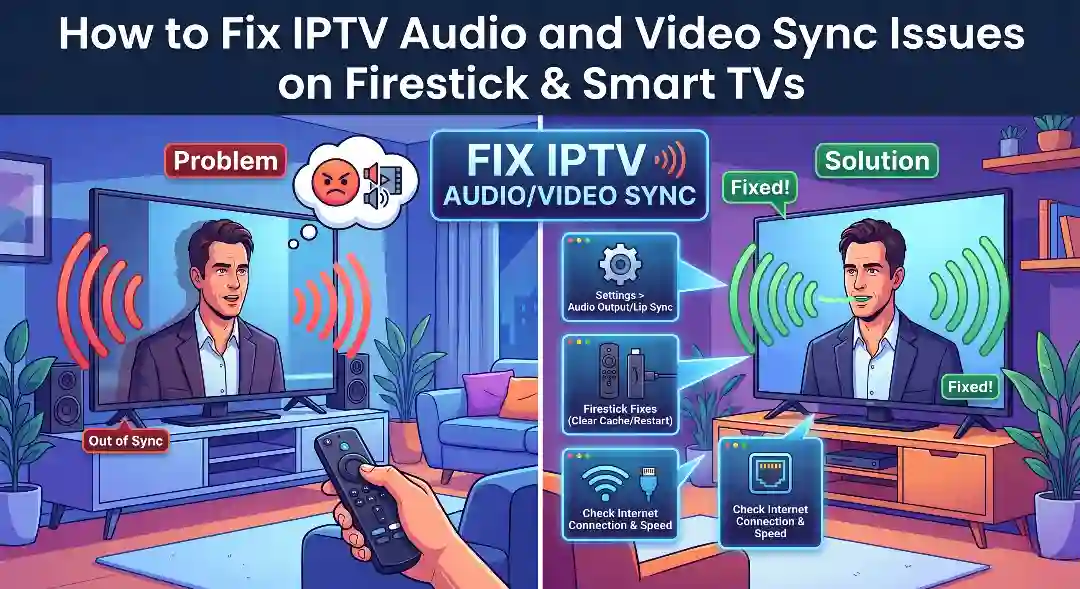
The Frustration of Audio/Video Desync
There is nothing more distracting than watching a live sports match or a movie, and the audio is a half-second behind the video. Every time a player kicks a ball or an actor speaks, their lips don't match the sound. This is known as Audio/Video (A/V) desync, and it is a common issue in the world of IPTV.
If you are experiencing A/V sync issues while streaming Premium IPTV Services, this guide will walk you through the exact fixes for Amazon Firestick, Smart TVs, and popular IPTV player apps.
Why Audio/Video Desync Happens
A/V desync occurs when the processing time for the video stream and the audio stream become misaligned. This can be caused by:
- Bluetooth Latency: Wireless headphones and soundbars introduce a slight delay in audio transmission.
- TV Post-Processing: Features like 'Motion Smoothing' or 'Noise Reduction' take extra time to process the video frame, causing it to lag behind the audio.
- App Decoding Issues: The IPTV player app is struggling to decode the high-bitrate 4K stream efficiently.
- Frame Rate Mismatches: The stream is broadcasting at 60fps, but your TV or app is forcing it to play at 30fps or 24fps.
Fix 1: Adjust the Audio Delay in Your IPTV Player Settings
Most premium IPTV apps have a built-in feature to manually shift the audio track. This is the quickest and easiest fix.
- In Tivimate: Go to Settings > Player > Audio Delay. You can adjust this in milliseconds. If the audio is late, try setting it to -100ms or -200ms.
- In IPTV Smarters Pro: Open the player settings during a live stream, look for the 'Audio/Video Sync' or 'A/V Sync' option, and use the slider to match the lips to the sound.
Fix 2: Turn Off "Motion Smoothing" on Your Smart TV
If you are watching on a Samsung, LG, or Sony Smart TV, the TV's internal picture processing is likely the culprit. Features marketed as 'Auto Motion Plus' (Samsung), 'TruMotion' (LG), or 'Motionflow' (Sony) artificially interpolate frames to make the picture smoother. This processing takes time and causes the video to lag behind the audio.
Go into your TV's Picture Settings and turn ALL motion smoothing features OFF. Set the picture mode to 'Filmmaker Mode', 'Cinema', or 'Game' for the most direct, unprocessed signal path.
Fix 3: Switch from Bluetooth Audio to Wired/Wi-Fi Audio
If you are using Bluetooth headphones or a Bluetooth soundbar with your Firestick, the wireless transmission inherently introduces latency. To test if Bluetooth is the issue, disconnect the Bluetooth device and use the TV's internal speakers. If the sync is perfect, you know the Bluetooth delay is the cause. Consider using a Wi-Fi soundbar or a wired optical cable instead.
Fix 4: Check Your Stream's Frame Rate (FPS)
Live sports are often broadcast in 1080p60 (60 frames per second) for ultra-smooth motion. If your Firestick or TV is set to output a 4K/24Hz or 1080p/30Hz signal, the device has to work incredibly hard to convert the 60fps stream, leading to processing lag and A/V desync.
Go to your Firestick Display settings and ensure the screen resolution is set to match the content, or auto-adjust the frame rate. For the best live sports experience, 1080p at 60Hz is often more stable and faster to decode than native 4K.
Conclusion
Audio and video sync issues are almost always related to local device processing rather than the IPTV server itself. By disabling motion smoothing, adjusting the audio delay in your app, and optimizing your display settings, you can enjoy perfectly synced, immersive viewing. For more device-specific troubleshooting, check out our Firestick setup guide and our Smart TV setup guide.