The Legacy of MAG Boxes
Before Amazon Firesticks and Android TV boxes took over the market, MAG devices (like the MAG 250, MAG 254, and MAG 322) were the gold standard for IPTV. Manufactured by Infomir, these dedicated set-top boxes are still widely used today because of their incredible stability, simple interface, and plug-and-play reliability.
However, MAG devices operate differently than modern Android apps. They do not use M3U playlists or standard Xtream Codes logins. Instead, they rely on Stalker Portals. If you have a MAG box and a Premium IPTV Services subscription, this guide will show you exactly how to set it up.
What is a MAG Box?
A MAG box is a dedicated Linux-based IPTV receiver. Unlike an Android box that runs various third-party apps (like Tivimate or Smarters), a MAG box has a single, built-in IPTV interface called 'Portal'. Because the hardware and software are tightly integrated by the manufacturer, MAG boxes are incredibly efficient and rarely suffer from the app crashes or overheating issues common with cheap Android streaming sticks.
Why MAG Devices Use Portal URLs Instead of M3U/Xtream
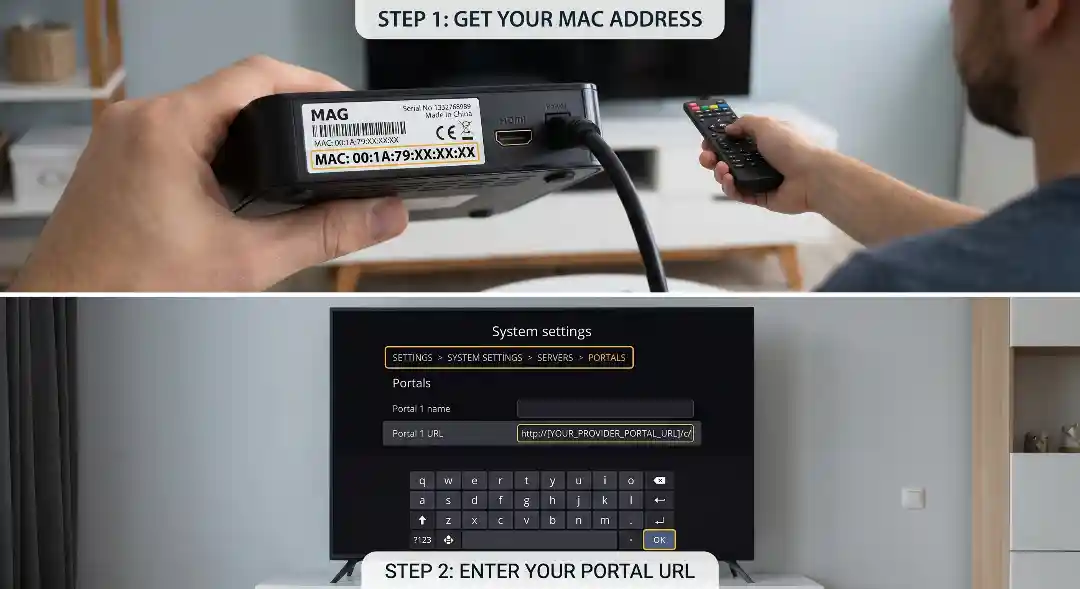
Modern IPTV apps use an M3U text file or an Xtream Codes API to fetch data. MAG devices, however, use a protocol called Stalker Middleware. To access a Stalker Portal, the MAG box requires two specific pieces of information: 1. The MAC Address: A unique 12-digit identifier tied to the physical hardware of your MAG box. 2. The Portal URL: A specific web address provided by your IPTV provider that points to the server's middleware.
Step-by-Step: Entering Your Stalker Portal MAC and URL
Setting up your MAG device with Premium IPTV Services is straightforward. Follow these steps:
Step 1: Find Your MAG MAC Address
Turn on your MAG box and navigate to the main menu. Go to Settings > System Settings > Local Network. Here, you will see your MAC Address. It will look something like 00:1A:2B:3C:4D:5E. Write this down exactly as it appears.
Step 2: Request Your Portal URL
When you purchase a plan from Premium IPTV Services, you must specify that you are using a MAG device. Our support team will take your MAC address and register it on our Stalker Middleware server. We will then email you a specific Portal URL (e.g., http://provider.com/stalker_portal/c/).
Step 3: Input the URL into the MAG Box
On your MAG box, go back to Settings > System Settings > Servers > Portals. Here, you will see a field to enter the Portal URL. Type in the exact URL provided by our support team and hit 'Save'.
Step 4: Reboot and Enjoy
Once the URL is saved, go to the main menu and select Reload or restart the MAG box. The device will connect to our middleware server, verify your MAC address, and instantly load the 25,000+ channels and EPG guide.
Troubleshooting Common MAG Error Codes
Because MAG boxes use a strict middleware protocol, you might encounter specific error codes if something is misconfigured:
- Error 0 (Authentication Failed): This means your MAC address has not been registered on the server, or you entered the wrong Portal URL. Contact Premium IPTV Services support to verify your MAC is active.
- Error 1 (Missing Components): The portal URL is correct, but the server is missing the necessary configuration for your account. This is rare but can be fixed by our 24/7 support team.
- Error 2 (Network Issues): The MAG box cannot reach the portal URL. Check your Ethernet cable, ensure your router is online, and verify that the Portal URL was typed without any typos.
Conclusion
MAG devices remain a fantastic, reliable choice for IPTV enthusiasts who want a dedicated, app-free experience. By understanding how Stalker Portals and MAC addresses work, you can easily configure your box to stream Premium IPTV Services in high definition. For more setup guides on modern devices, check out our master tutorial on how to set up IPTV on any device, or learn about the differences between connection formats in our M3U vs Xtream Codes guide.